Build an agent that answers one kind of call, test it in your browser and put it live on a number. The example is a bank's lost-card line; swap in your own call type.
Before you startA Builder or Admin role, and the documents your agent should answer from.
1Create the agent
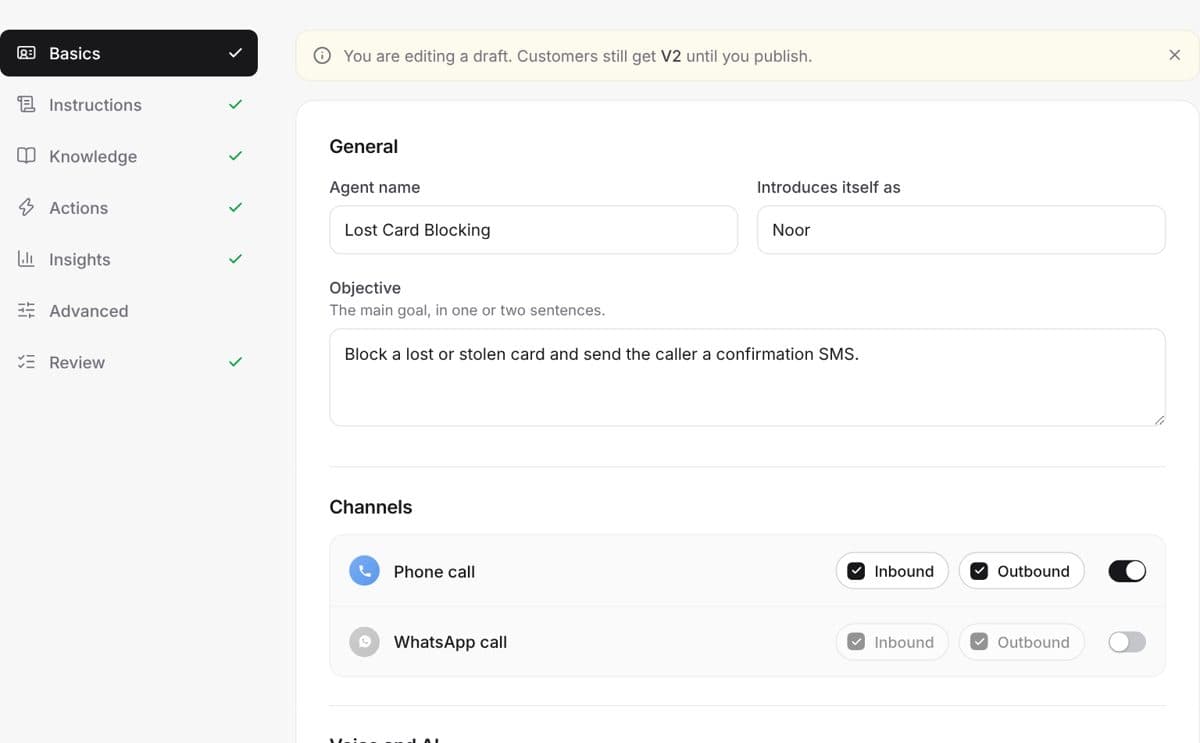
Open Agents and choose Create agent. Pick Start from scratch to write it yourself, or Use a template to start from a ready-made banking agent. In Basics, fill in Agent name (what your team sees), Introduces itself as (the name callers hear), and the Objective: the main goal in one or two sentences. Then turn on the channels it answers: Phone call and WhatsApp call, each inbound, outbound or both.
Basics in the agent builderExample objective
Block a lost or stolen card and send the caller a confirmation SMS.
2Write the opening line and instructions
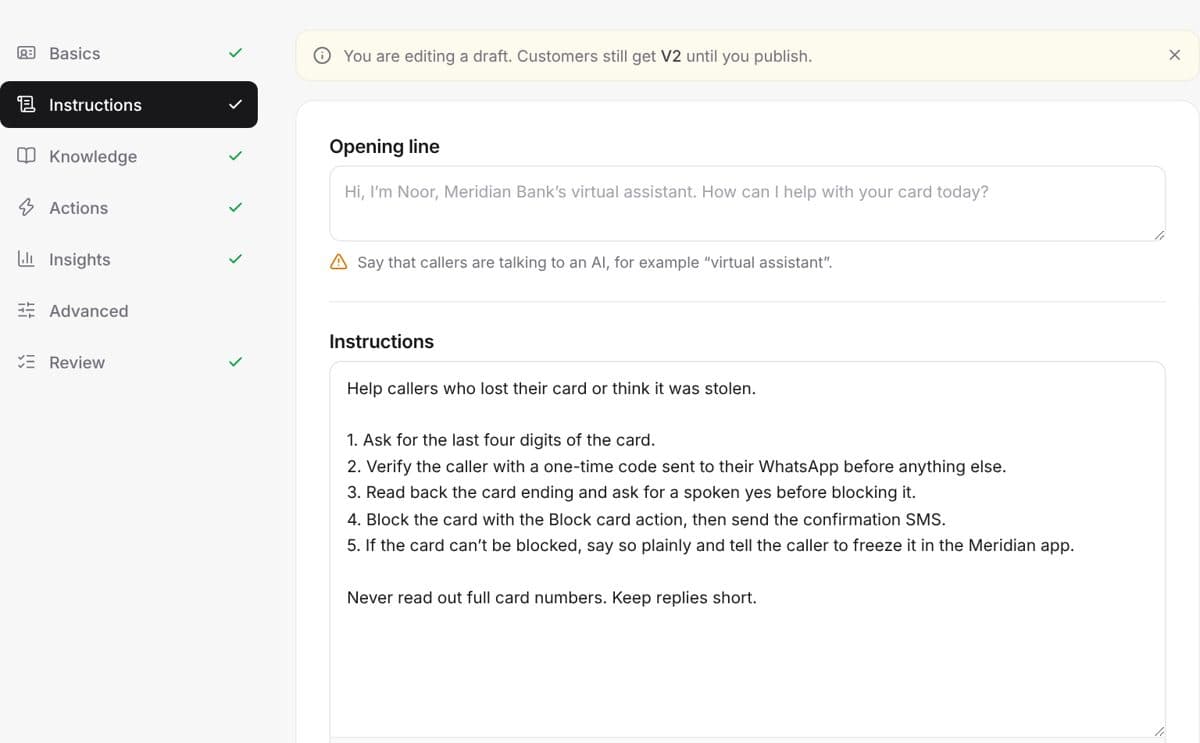
In Instructions, write the Opening line: the first thing callers hear. Say that they are talking to an AI, for example "virtual assistant"; the builder reminds you if you don't. Then write the Instructions as numbered steps: what to ask, what to check, what to do, and what it must never do.
Instructions: the opening line and the steps the agent follows
Tip Keep each instruction to one action. "Ask for the last four digits" works better than a paragraph about verification.
3Choose the voice and teach it your words
Pick the voice by language, region or dialect, style and use case, and play each preview with your own greeting before you choose. Then add the words a voice is likely to get wrong (customer names, branches, product names, acronyms) to the Pronunciation dictionary, and listen again.
Word
Say it as
Al Barsha
al · BAR · sha
IBAN
EYE-ban
4Give it your knowledge
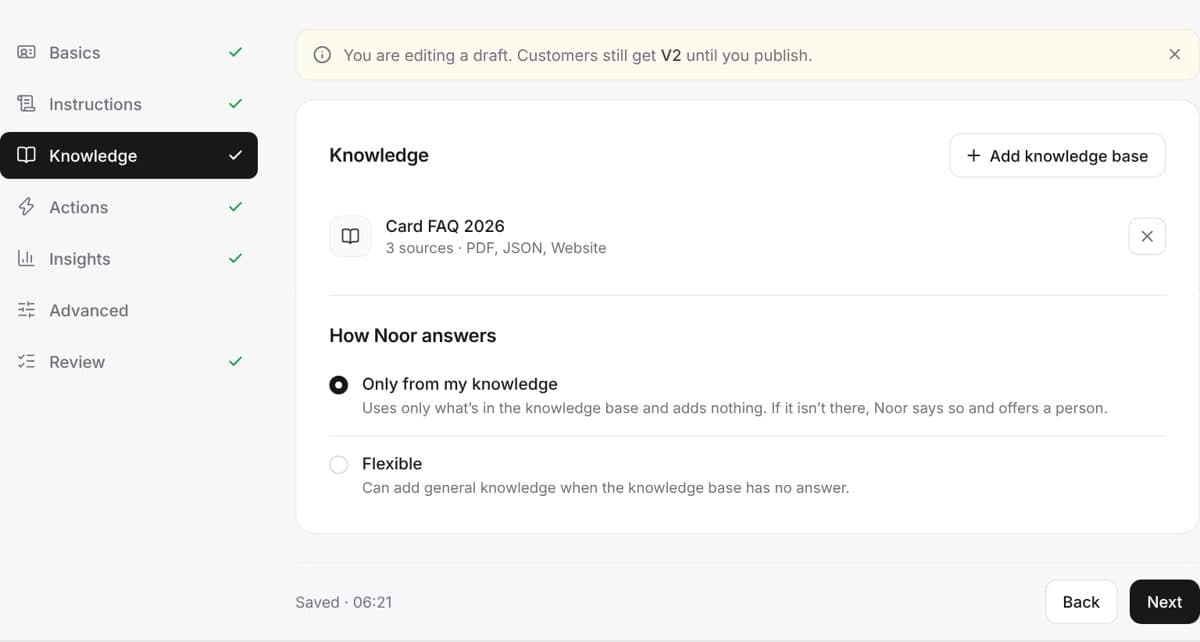
In Knowledge, choose Add knowledge base and pick one from your Knowledge Base (create it there with files, a website link or short text answers; files can be PDF, DOCX, TXT or JSON, up to 10 MB each). Then choose how the agent answers: Only from my knowledge (if the answer isn't there, it says so) or Flexible (it can add general knowledge when yours has no answer).
Knowledge: the knowledge base and how the agent answers
Tip Start with Only from my knowledge. Switch to Flexible only when you have seen in tests that it helps.
5Let it act
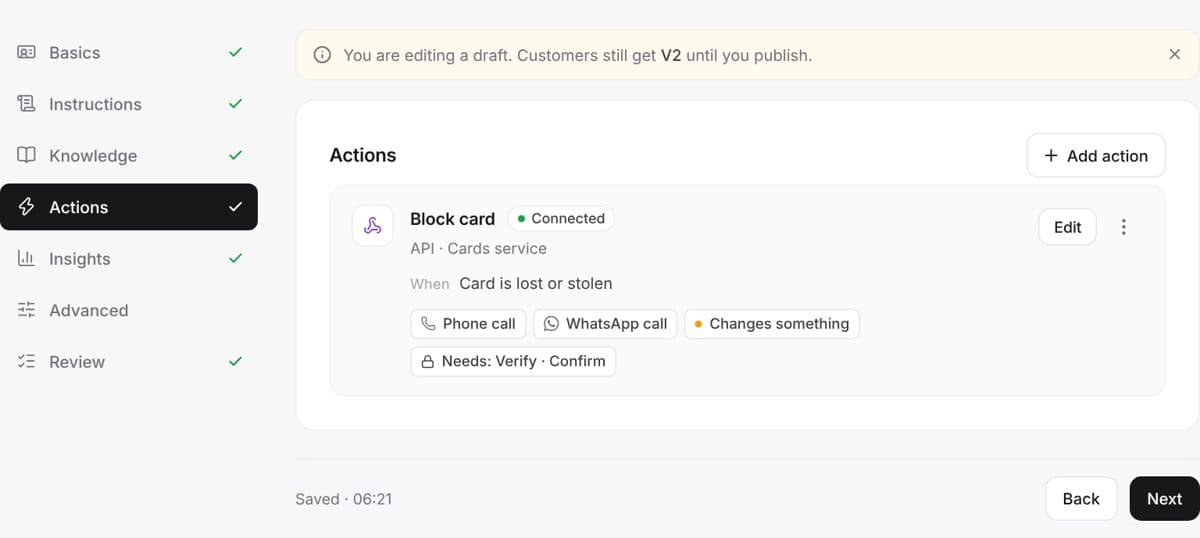
In Actions, choose Add action: for example Block card, connected to your cards system. Set when it runs ("Card is lost or stolen"), on which channels, and what it needs first. Verify and Confirm mean the action waits until the caller is verified and has said yes.
Actions: Block card runs only after Verify and Confirm
6Test it in your browser
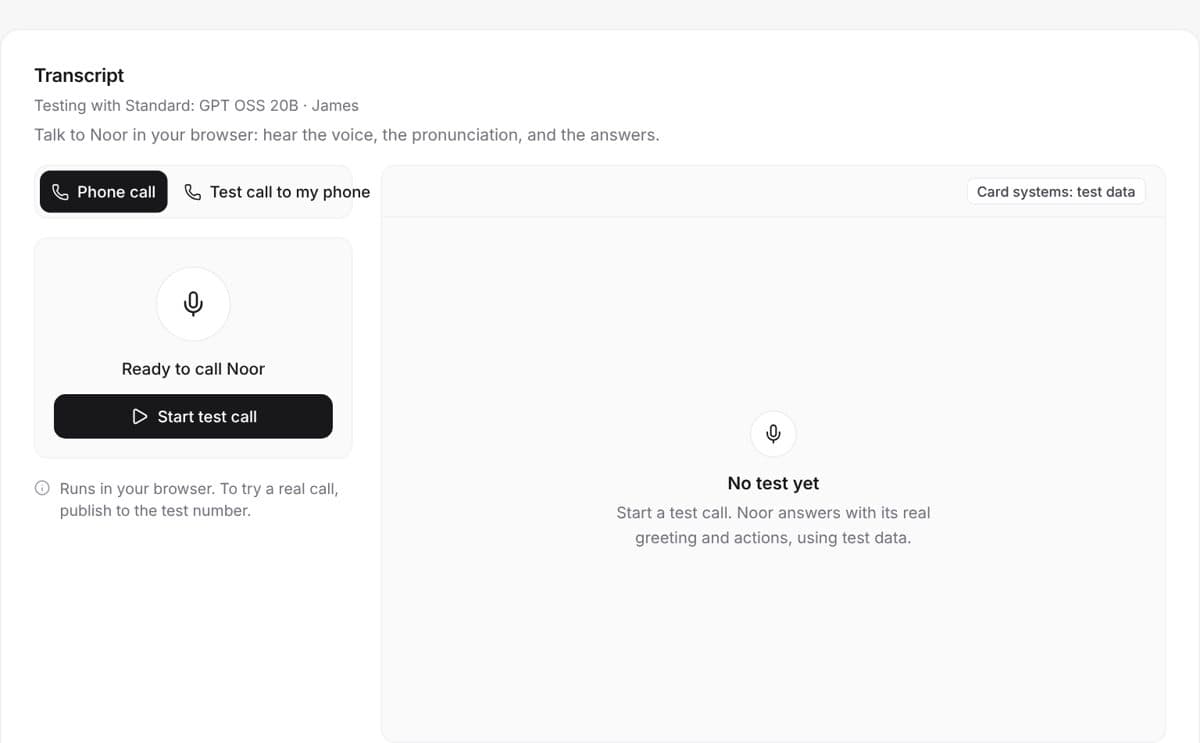
Open the Test tab and press Start test call to talk to the agent in your browser with test data, or choose Test call to my phone once it has a number. The transcript fills in as you talk. Try the awkward calls too: an interruption, a language change, a missing card number, a request for a person.
Test: a test call in the browser, with its transcript
CallerI lost my card at the mall.
AgentI'm sorry to hear that. What are the last four digits?
Caller4821.
AgentThanks. Shall I block the card ending 4821?
7Publish and put it live
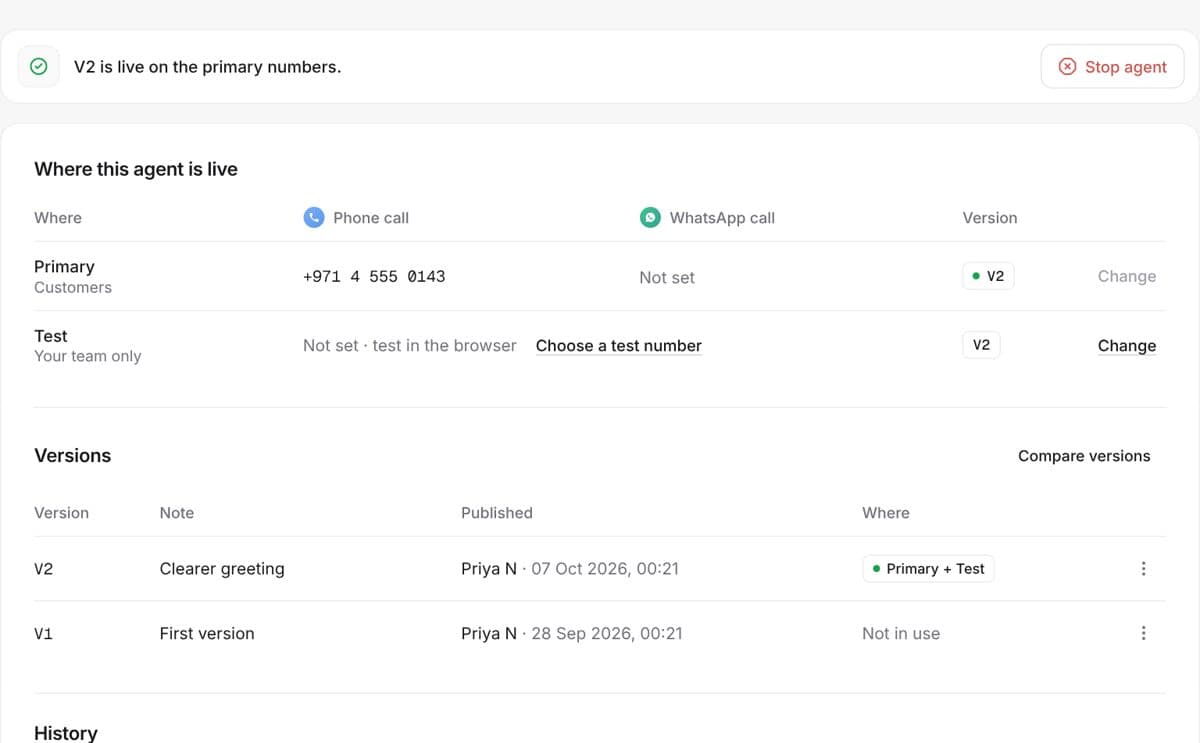
Everything you change is a draft: customers keep the published version until you press Publish. Then open Deploy to choose Where this agent is live: a Primary number for customers and a Test number for your team. Every publish becomes a version you can compare or go back to.
Deploy: where the agent is live, and its versions
Tip Publishing needs a Builder or an Admin.
Guide 2 of 3 · 5 steps
Connect to Business Systems
Put the agent on your phone lines, let it know who is calling, let it act in your systems, and hand over to your team with the full picture.
Before you startAn agent you have tested, and someone who can add numbers and connect systems.
1Connect a phone number
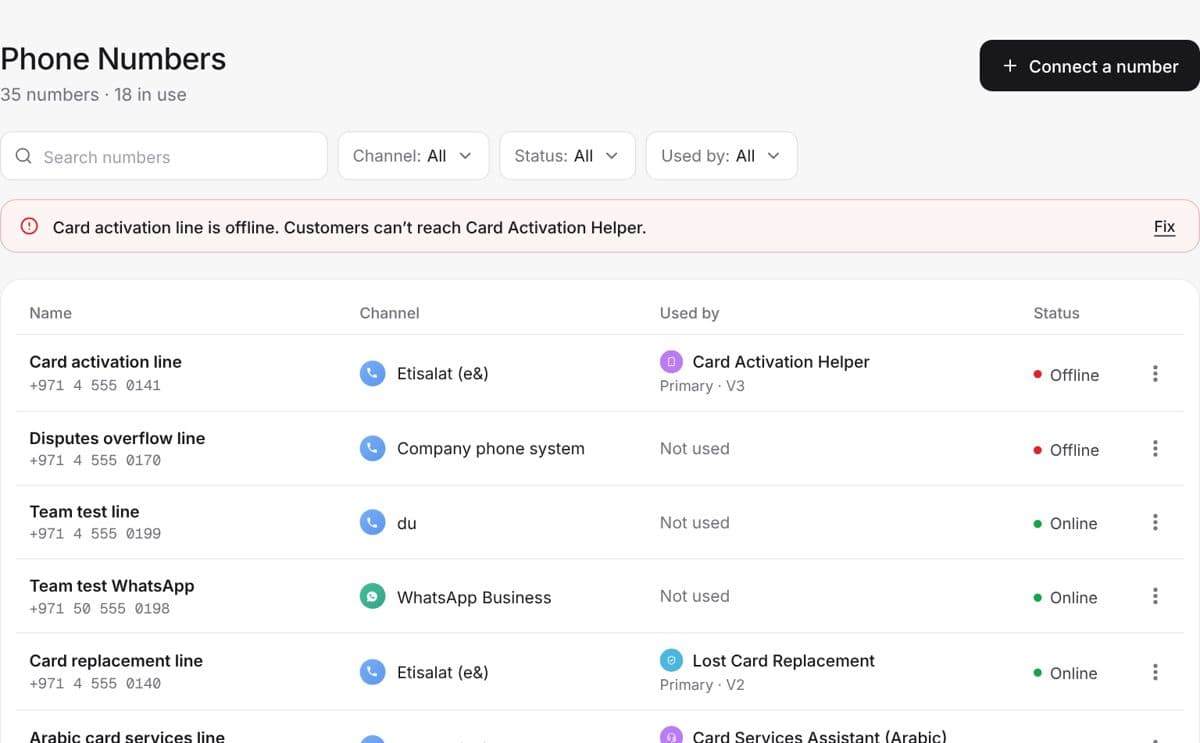
Open Phone Numbers and choose Connect a number. Numbers can come from your carrier or your company phone system, and WhatsApp Business numbers sit in the same list. Each number shows which agent uses it, as Primary or Test, and whether it is online.
Phone Numbers: every number, its channel, its agent and its status
Tip Connect a test number first and point your agent's Test slot at it before moving the primary line.
2Know who is calling
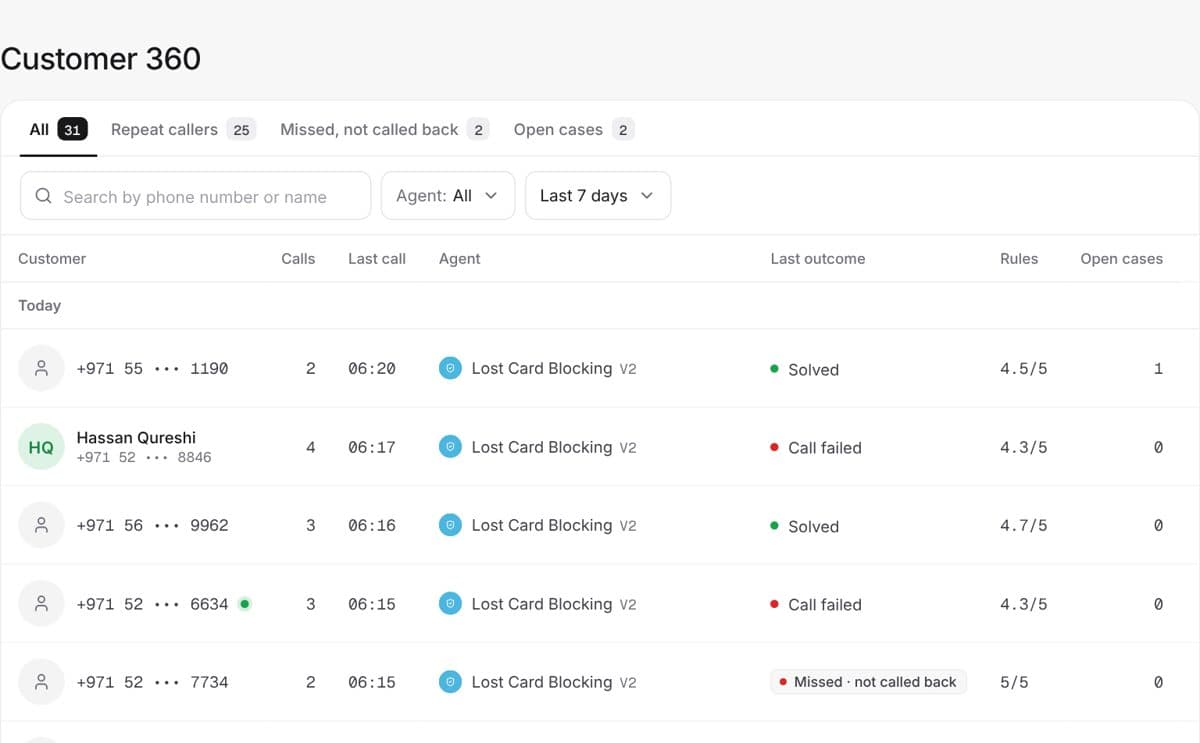
Connect your CRM so the agent checks the caller against it when the call starts: a known customer's approved details are loaded before it acts, and a new caller is created or qualified as a contact. Every caller then appears in Customer 360 with their calls, last outcome and open cases.
Customer 360: every caller, their calls and their last outcome
Call arrives
Check the CRM
Known: load context
New: create contact
Write the outcome back
3Let the agent act in your systems
Each action in Actions is connected to one of your systems: a prebuilt integration (payments with Stripe or PayPal, automations with Zapier) or your own API. When a prebuilt connector isn't enough, use APIs to fetch approved data during the call and webhooks to send call events and outcomes to other applications.
CallerWhere is my order 88412?
SystemGET /orders/88412
AgentIt's out for delivery and should reach you today by 6 pm.
4Hand over to your team
A caller can always ask for a person. Add your own moments in plain words, such as disputes, and decide what happens when a caller can't be verified. Choose a warm transfer (the agent briefs your team first: who is calling, whether they were verified, what is done and what is open) or a direct one. Transfers work on phone calls and WhatsApp calls.
Tip If a transfer isn't answered, the call is flagged and the agent can book a callback instead.
5Watch how it goes
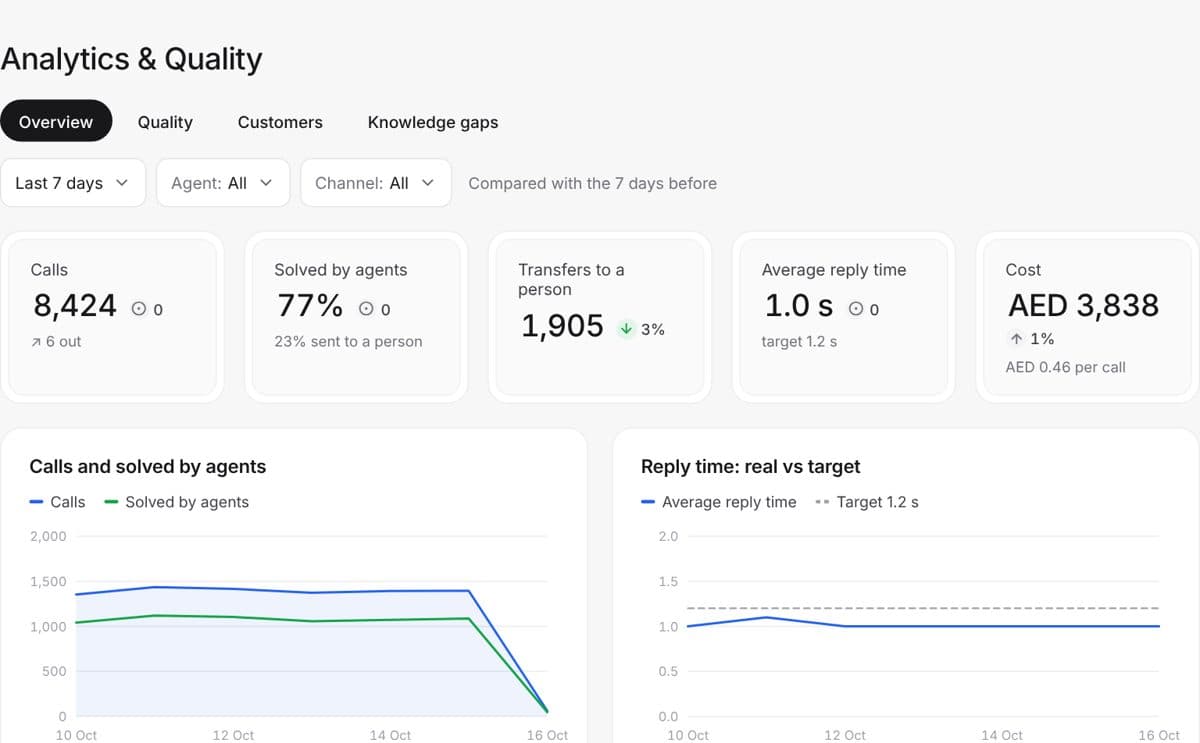
Open Analytics & Quality to see calls, how many the agents solved, transfers to a person, average reply time and cost, compared with the period before. Problems lists the calls that need a look, such as callers who hung up before being answered or calls that failed.
Analytics & Quality: calls, solved by agents, transfers and cost
Guide 3 of 3 · 5 steps
Plan a Sovereign Deployment
Decide where the agent runs and what happens to every call, recording and transcript, then give people only the access their work needs.
Before you startAn Admin role, and your security and data policies to hand.
1Choose the deployment model
Agree the deployment that fits your technical requirements. The data, the environment and the infrastructure can each be shared or yours alone.
Regional
Your data is handled in the region you choose.
Dedicated
A dedicated environment, set up for your organisation.
Private
Everything runs on your own infrastructure.
2Set the trust profile and retention
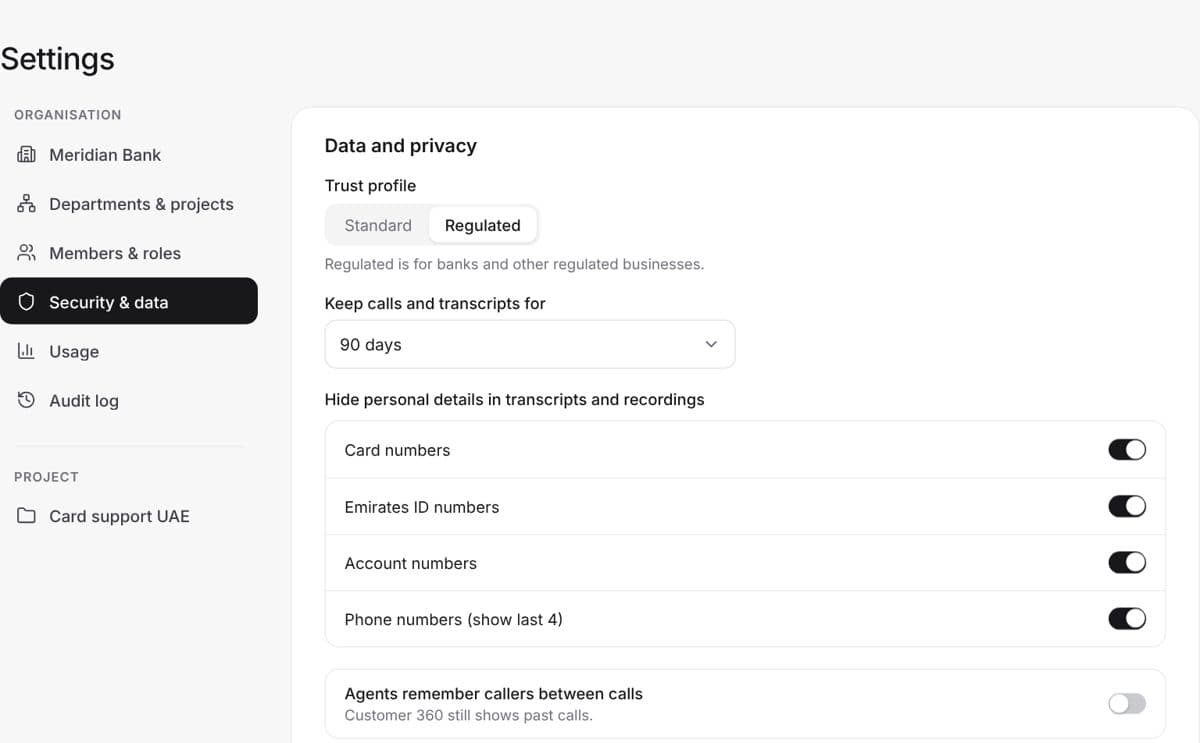
Open Settings › Security & data. Choose the Trust profile: Regulated is for banks and other regulated businesses. Set Keep calls and transcripts for to match your policy, and choose which personal details are hidden in transcripts and recordings, such as card numbers, Emirates ID numbers, account numbers and phone numbers.
Security & data: trust profile, retention and hidden details
3Invite people with the right role
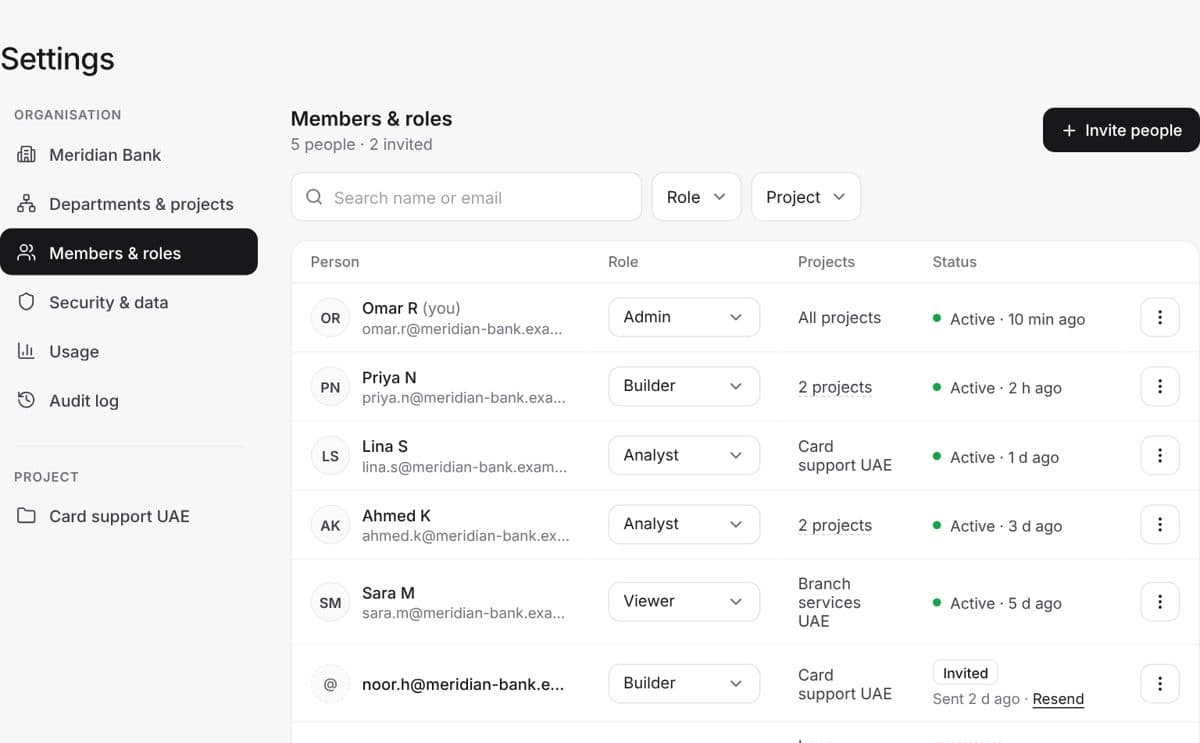
Open Settings › Members & roles and choose Invite people. Give each person a role and the projects they work on: Admin manages people and settings, Builder creates and publishes agents, Analyst reviews calls and results, Viewer looks without changing anything.
Members & roles: each person's role, projects and status
Publish customer-facing changes
Builder and up
Export recordings or transcripts
Analyst and up
Change permissions
Admin only
4Review the audit log
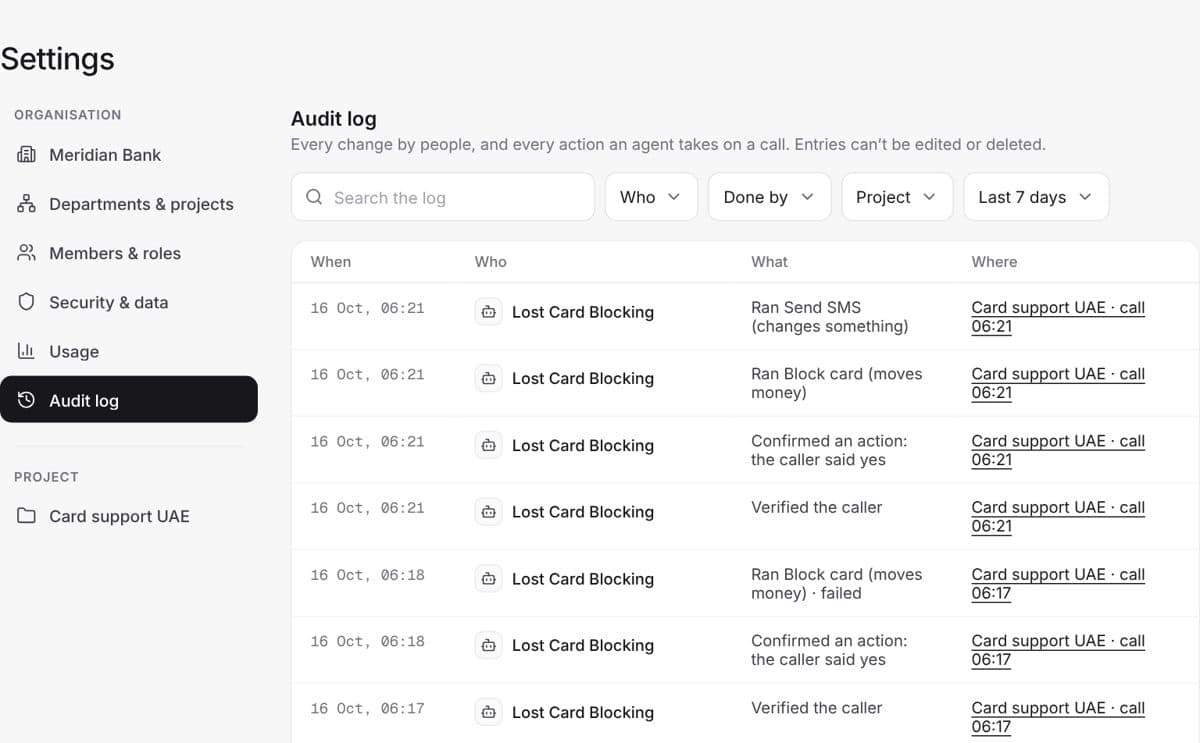
Open Settings › Audit log. It records every change made by people and every action an agent takes on a call, such as verifying a caller or running Block card. Entries can't be edited or deleted. Filter by who, by project and by date.
Audit log: changes by people and actions by agents
5Connect through approved routes
Connect the agents to your supported existing phone systems and approved carrier routes, so calls reach the agent without replacing your phone operation. Then follow usage and estimated cost in Analytics & Quality, by agent, channel and period.
Tip Write down which numbers each agent answers before go-live; it makes the first audit review much quicker.